# Introduction
Thank you for purchasing "Ridy".
To install the solution, you'll need a server for the backend and admin panel. A VPS offers a good balance of performance and cost for hosting Ridy's server side. The minimum VPS requirement is 4GB RAM. You'll need an SSH client to access the server's terminal, as the entire installation process is done via SSH.
{% hint style="info" %}
The app is **NOT** based on PHP so it wouldn't be a good idea to have a server that has a PHP Web Panel (WHM, Avoid installing control panels like Plesk or cPanel as they consume resources and may interfere with services the application depends on. It is recommended to allocate a separate server for Ridy, ensuring only a minimal Linux OS is installed.
{% endhint %}
# Firebase
The app seamlessly integrates with four Firebase modules, one of which is essential for app operation, the Firebase Cloud Messaging service which would allow notification delivery. In this step, we'll configure Firebase so that you can proceed with the platform-specific tasks required for Firebase integration in the following steps.
To begin, visit [https://console.firebase.google.com](https://console.firebase.google.com/) and click the "Add New Project" button to create a new Firebase project. This project will be linked to your Google account.
{% hint style="danger" %}
Please note that it is important to configure the server and client components and everything related to the app within a single Firebase project. Avoid using multiple Firebase projects, as this can cause issues with the login feature not functioning correctly.
{% endhint %}
{% hint style="info" %}
Within Ridy, we utilize 1-Firebase's Cloud Messaging, 2-Crashlytics (for crash reports), and 3-Analytics services. However, it's important to note that none of these services serve as the hosting solution for Ridy. All of your information is stored on your server, and you can discontinue using Firebase at any time.
{% endhint %}
# Server
Installing the Backend and Admin panel on your server
## Connect To Server
To run the application, you'll need a VPS with at least 4GB of RAM. For optimal performance, it's recommended to host only Ridy on this server. Once you've purchased your VPS, you can access its terminal using the credentials provided by your hosting provider. These credentials usually include the server's IP address and the root user's password.
## Installation
Once you've accessed your server's SSH console with the provided credentials, navigate to the `root` directory using the following command:
```bash
cd /root
```
From there, you can initiate the installation process with the command:
```bash
curl -sSL https://uploads.ridy.io/install.sh | sh
```
This command automates the installation of Docker, downloads and installs Ridy, and configures your server. Once complete, you'll receive an admin panel URL (e.g., ) to manage your Ridy instance.
## Configuration
For the first time that you access your admin panel you will be presented with configuration steps for setting up the application. Below are the details of each step:
### Wizard
#### Purchase Code
#### API Keys Configuration for Google Maps Services
Ensure your API keys are configured correctly with the following Google Maps services:
* **Directions API (Backend Key)**
* **Javascript Maps API (Admin Panel Key)**
* **Static Maps API (Admin Panel Key)**
* **Places API (Admin Panel & Backend Key)**
* **Distance Matrix API (Backend Key)**
After purchasing from Codecanyon, check your email for a "Purchase Confirmation" that includes your purchase code. Use this code in the Configuration Wizard to verify your purchase. It's also recommended to provide an email address solely for license inquiries and important updates regarding your license
{% hint style="warning" %}
Ensure that the billing account for the project you retrieved the keys from is enabled. Enabling the billing account is essential for the app to function correctly.
{% endhint %}
#### Firebase Admin SDK
To obtain your Firebase project's private key, go to `Project Settings` and find the `Service Accounts` section. Click `Generate Private Key` to download the JSON file. Next, use the upload panel to upload the key

**Configuration Step**
After uploading the Firebase project private key, wait approximately 30 seconds for the app to complete its configuration. Once finalized, proceed to the login page using the button provided. The default credentials are username: `admin` and password: `admin`
{% hint style="info" %}
If you encounter a 502 gateway error after using `admin/admin`, it indicates that the restart process, which normally occurs automatically, was not successful. You can complete it manually with the following command:
`docker compose down && docker compose up -d`
{% endhint %}
#### Setup SMS Provider
To set up the SMS provider for OTP functionality in our mobile apps, follow these steps:
1. Run the admin panel.
2. Navigate to `Management -> SMS Providers`.
3. Create a new SMS provider.
4. Enter the API keys obtained from registering on the provider's website.
Completing these steps is essential for enabling login and phone number verification via OTP.
# Client
Configuration and compilation of the client side (Flutter)
First, we will proceed with the necessary updates for both the Android and iOS apps.
### Android
To begin, we need to create release keystores for signing the APKs or aab bundles. You can use the command provided below, replacing \[key\_alias\_name] with the desired alias name of your choice:
```
keytool -genkey -v -keystore keystore.jks -alias [your_alias_name] -keyalg RSA -keysize 2048 -validity 10000
```
Ensure you have copied this file to the driver's and rider's frontend folders. Then, open the `key.properties` file located in the `android` folder and enter the alias name and password you have chosen for the keystore in the appropriate fields.
Now, execute the following command to display the signature of both your system's debug keystore and the release keystore. Take a copy of the SHA-1 and SHA-256 values, as we will need them later.
```bash
../gradlew signingreport
```
Next, open the `build.gradle` file located in the app folder. Inside this file, you will find the line that specifies the `applicationId`. Update this line to match the application identifier of your own brand.
android {
    compileSdkVersion 33

    sourceSets {
        main.java.srcDirs += 'src/main/kotlin'
    }

    defaultConfig {
        // TODO: Specify your own unique Application ID
-       applicationId com.ridy.taxi.rider
+       applicationId com.yourCompanyName.taxi.driver
### iOS
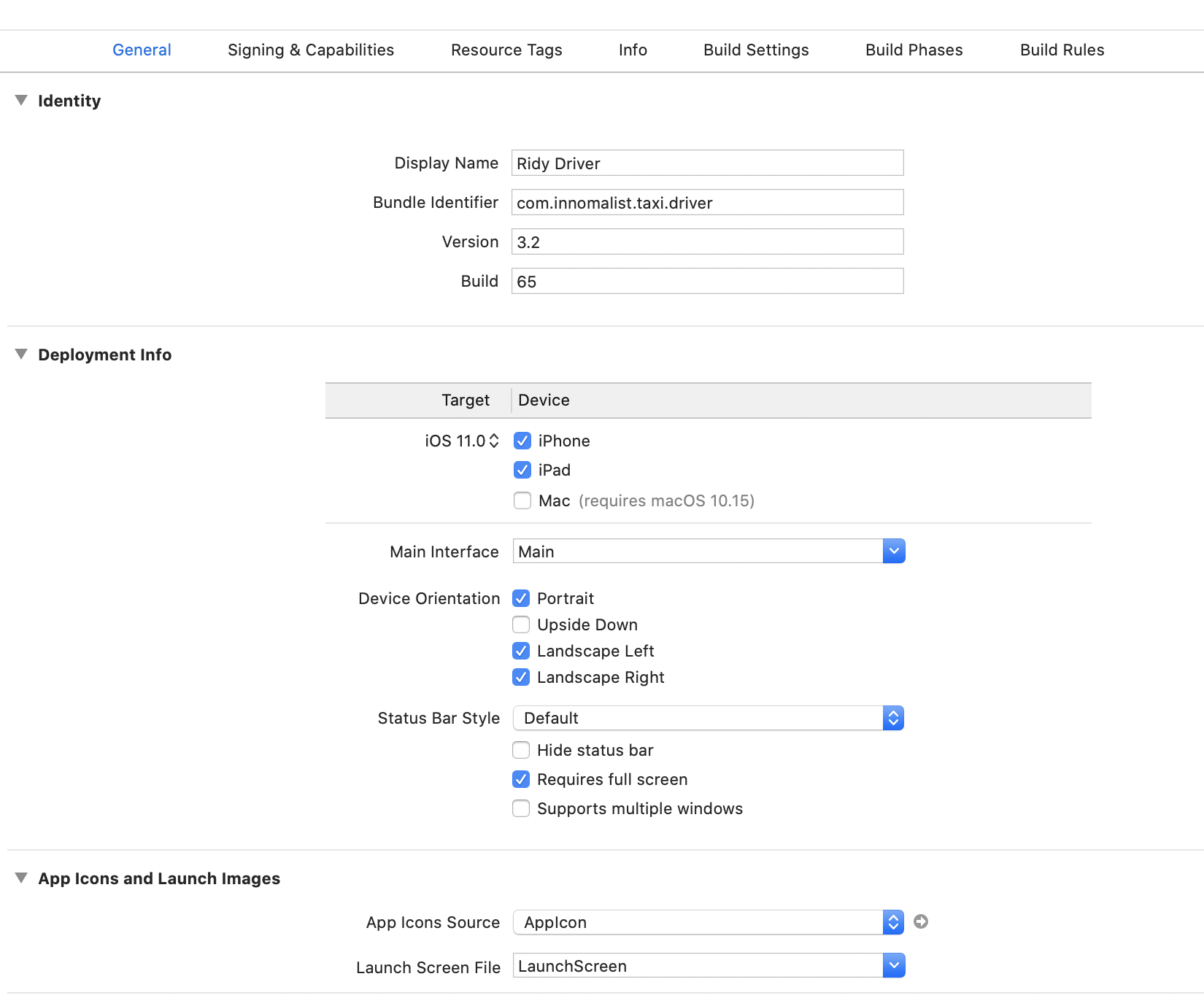
Next, we will do the same for iOS apps. Please open the `Runner.xcworkspace` in either rider-frontend/driver-frontend's ios folder. Next click on the Runner project in the left panel so the project settings would appear. Then under the Signing and Capabilities tab, you can change the bundle identifier:
### Firebase
You can now head to the Firebase console and create a Flutter Firebase app on the project created during the first Firebase setup.
During the flutter application creation, you will be instructed on how to install `Firebase CLI` & `FlutterFire` tool:
Once you have installed those tools, Firebase will prompt you to connect your apps to the Firebase project. This process is seamless and can be accomplished by executing a command similar to the one provided below by Firebase:
## Activate the default SDK
The logic for selecting the provider is located in `libs/flutter_common/lib/config/constants.dart`. The map provider switch allows for changing the provider according to the target platform.:
```dart
static PlatformMapProviderSettings get mapProviderPlatformSettings => PlatformMapProviderSettings(
defaultProvider: MapProviderEnum.openStreetMaps,
desktopProvider: MapProviderEnum.openStreetMaps,
webProvider: MapProviderEnum.openStreetMaps,
);
```
# Measurement System
Most countries use the metric system for measurements (e.g., kilometers, Celsius), while others, like the USA, use the imperial system (e.g., miles, feet, Fahrenheit). Ridy supports both systems in its client-side apps. To change the default system from metric to imperial, navigate to `->lib->config->env.dart` and update the `defaultMetricSystem` value.
# Setup
## Regions
The first thing that needs to be defined is what Regions service operates on. This is done through `Regions` Menu under the `Management` section.
Using `+ Add` you will be presented with the following screen. Here you can set a name for the region, set the currency, and then draw the region on the map below.

## Services
With regions being defined now it's time to set up services. Services are the list of options the user has to order just like the picture below:

In `Management`->`Services` You would need to first define the service categories using the `New Category` button. After doing so `New Service` button would appear on the same screen so you could add services too. Options to define a service are many making the app usable for businesses other than taxis too. Depending on your type of business you can set appropriate options and fee structures on this screen to be presented.

# Financials
## Driver
Driver's income is stored in their multi-currency wallet and records are stored in the transactions table. You can either go to a specific driver from the `Drivers` menu or open the accounting menu to see all driver's wallet list. This page is useful for automatic payouts. For example, you can filter wallets based on a currency and a specific range of amounts and then export it to CSV using the option provided and use the bank panel to payout all of them at once.
{% hint style="info" %}
When a payout is done the app should be known to deduct the payments from the wallet. At the moment there is no bulk solution integrated for mass payout input. You can either write a plugin of your own and manipulate the database or do manual Transaction adding through each driver's `Financial Records` page.
{% endhint %}
## Admin
This page shows the record of all commissions the admin had on services done. Upon each service being finished record to commission is added here and the amount is added to the multi-currency wallet of the admin.
## Rider
You can see all the rider's wallet amounts here if not zero and sort them.
## Fleets
Fleet payouts can be managed just like wallet payouts as discussed.
# Marketing
## Announcements
The announcement is a place to get in touch with your clients through public notices. These notices can include offers, news, updates &, etc. It is important to set a correct date for the start date and expiration date so the offer would be shown at that range only and be expired after afterwhile.
## Coupons
Coupons are a great marketing tool to help with user retention rates. Users can keep them to get discounts on their trips. Coupons just like promotions have an expiry date and they won't be available to users to use after the expiry date. Customers can enter the coupon code during the trip to get the discount.
# Management
With the app user base growing over time administration of the system can be a work for a team. Admin can create users with different sets of accesses to different parts of CMS so they would be able to do that without making an unwanted change to other parts. Definition of CMS users is possible in `Management`->`Users` menu.
# Fleets
Fleets are sub-provider that can be beneficiaries of trip commissions. This is an optional feature and everything can work without it. When a driver is being approved admin has the option to assign a driver to a fleet to share the commission of the trip between the admin and fleet wallet. The percentage of share is to be set per fleet.
# Online Payments
For services, there are two optional payment methods. Direct payment or in-app payment. For direct payment, the rider would pay the full amount to the driver in any way convenient such as cash, and the commission would be deducted from the driver's credit. In addition to that, there are in-app online payment options. The customer pays the fee and the payment processor would pay it to the admin account. Once payment is done driver's share is added to his in-app wallet for future payouts.
Some of the Payment Gateways offered currently are as follows:
### PayPal
Most used payment solution around the world.
### Stripe
One of the globally most known and trusted payment gateways mostly used in Europe
### PayGate
South Africa Payment Gateway
### PayStack
Nigeria Payment Gateway
{% hint style="info" %}
If you want to have the payment gateway of your country implemented into the system you can contact about it.
{% endhint %}
# Complaints
In addition to reviewing rider gives to a driver affecting the driver's overall rating there is an option for both driver and rider to make a complaint so operators would have to review and take necessary actions. Under the trip history page, there is an option to submit complaints.
# FAQ
### What kind of web panel do I need?
The app is built on Node.js and does not rely on any PHP services like WHM, cPanel, Plesk, or Apache. We strongly advise against installing Ridy on a server with these services.
### After successfully updating or installing the app, the admin/app is unable to connect to the backend.
If Nginx fails to resolve a service when the specified wait time hasn't passed, it often defaults to an alternative service. Restarting Nginx typically fixes this. Here’s how:
1. Run `docker ps` to find the Nginx service name.
2. Restart the service using `docker restart `.
### I get Address Not Found when searching for a place
If you encounter an error from Google Maps servers due to an ineligible API key, ensure the Google project has a billing account linked. Verify that all necessary APIs are enabled according to the documentation. Try using an unrestricted API key to eliminate any incorrect restriction policies.
### Server stopped working suddenly.
The most likely reason for this is a system reboot, as some hosting providers may occasionally restart their servers. If a reboot occurs, use the following command to restart the app services:
```bash
docker-compose up -d
```
# Issue
If you encounter an issue or bug with the system, please follow these steps:
1. Verify if the issue is also present in the demo.
2. If not, upgrade your setup to the latest version on both the server side and client side by downloading from Codecanyon.
3. If the issue persists in the demo, report it to `contact@lumeagency.io` with the following details:
* **Platform**: iOS/Android/Web
* **Affected App**: Rider/Driver/Admin Panel
* **Version**: x.x.x
* **Screenshot/Video of the issue**
* **Expected behavior**
* **Actual behavior**
* **Logcat/Debug log of the issue** (optional)
Reports will be reviewed, and necessary fixes will be provided in future releases.